CAMPUS RESOURCES AT YOUR FINGERTIPS
department specific instructions
Tutoring-Learning Center (TLC)
step 1
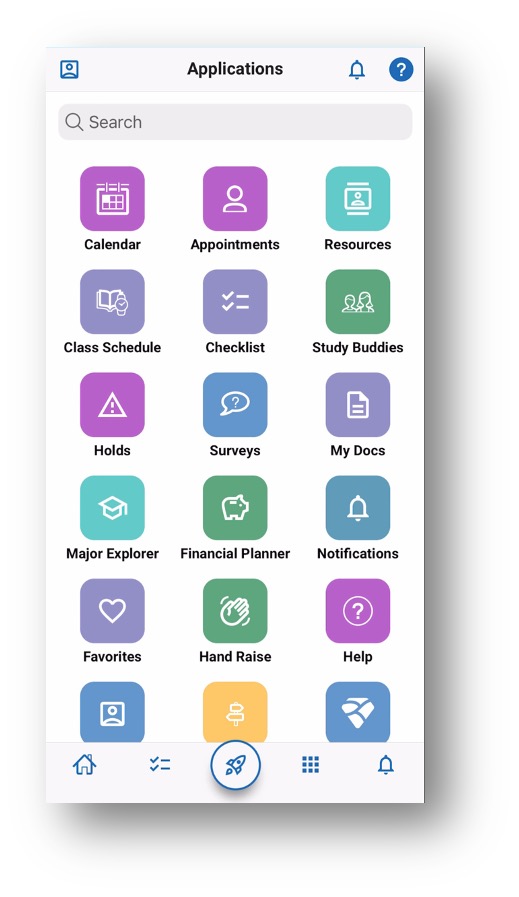
Select “Appointments” from the Home Screen of the Navigate app
Step 2:
Select “Schedule an Appointment” at the bottom of the page
Step 3:
Fill in the following fields:
- Care Unit – “Tutoring-Learning Center (TLC)”
- Location – “CCC” (except for Music, IA, GIS, & STEM Drop In)
- Service – Select the service you would like (see “Services Information” below)
- Meeting Type – “In-Person” or “Virtual”
- Comments – Brief description of the reason for your visit
- Date – Select the date you would like
Then, select “Find Available Time”
Step 4:
If you have selected course content tutoring (STEM, Humanities/Social Sciences, or World Languages), select which course you would like tutoring in.
Select your preferred time for the appointment.
If you would like to schedule with a specific tutor, select “View Indidivual Availabilities”
From here, select the tutor you would like to schedule with.
Step 5:
At the bottom of the “Review” page, select your preferences (make sure to select your choice for “How would you like to meet?” from the drop-down menu)
Then, select “Schedule”
Services Information
Academic Coaching Session – provides assistance with academic and studying skills (reading, habits, time management, test taking, online learning, etc.)
- “w/Coordinator” – session is with an Academic Coach Coordinator (location varies)
- “w/Peer” – session is with a Peer Academic Coach in CCC 234
STEM – provides specific course-content assistance in a STEM course (subject comprehension, deepen understanding, exam preparation)
- Will only appear if enrolled in a STEM course
Humanities & Social Sciences – provides specific course-content assistance in a Humanities/Social Science course (subject comprehension, deepen understanding, exam preparation)
- Will only appear if enrolled in a Humanities/Social Science course
World Languages – provides specific course-content assistance in a world language course (subject comprehension, deepen understanding, exam preparation)
Tech Essentials – provides assistance with UWSP applications and programs (Canvas, accesSPoint, Outlook, Microsoft, etc.)
Resume & Personal Statements – provides assistance with revising business writing for job and scholarship applications
Writing Assignments (Essays, Poems, Papers, etc.) – provides assistance with revising and brainstorming for academic, creative, and personal writing (does NOT assist with course content)
The Navigate Student App Features:
- And much more!
- To-do lists—like registration deadlines, advising reminders and resolving holds
- Calendar events
- Appointment scheduling
- Campus resources
- Your class schedule and locations
- Find “Study Buddies”
To Access the App:
- Search and download “Navigate Student” in Google Play or the App Store
- Search in the app for “Stevens Point”
- Use the same username and password you use for all your university accounts
- Remember to enable push notifications for updates and reminders!
For those without a smartphone or other mobile device, Navigate is also available on desktops at uwsp.navigate.eab.com.
Additional Resources
Student App Introduction, Downloading instructions, FAQs, & Troubleshooting Scheduling an Appointment with the Student App